
On-Page SEO
Image SEO with Codex: Alt Text, Formats and File Size
Do image SEO with Codex: audit alt text, file sizes, WebP and AVIF, lazy loading and dimensions, then let Codex fix the components and files.
Image SEO with Codex starts with one command: $seo images <url> checks every image on a page for alt text, file size, format, responsive markup, lazy loading and the dimensions that stop layout shift, then sorts the fixes so the biggest savings come first. Because Codex works inside your project, it can then fix the components and files themselves. This guide covers why images matter for search and speed, what the command checks and the thresholds it uses, how to read the report, and how to have Codex apply the fixes.
Key takeaways
$seo images <url>audits alt text, file size, format, responsive images, lazy loading, dimensions, file names and CDN use, then lists fixes by estimated savings.- Size limits follow the image's job, so a hero banner gets more room than a thumbnail before the skill raises a warning.
- The hero image breaks the usual speed advice: load it eagerly with
fetchpriority="high", never withloading="lazy".$seo images optimize <path>converts local files to WebP or AVIF, writes responsive sizes and adds IPTC or XMP metadata.$seo images serp <keyword>needs DataForSEO.- For Google Images, the words around a picture (its alt text, its file name and the page it sits on) do the heavy lifting. Camera EXIF data does nothing.
The images command at a glance
| Item | Details |
|---|---|
| Command | $seo images <url>, plus $seo images optimize <path> and $seo images serp <keyword> |
| What you give it | A live page URL, a folder or file of images in your project, or a keyword |
| What Codex reads | Every <img> and <picture> element on the page, its attributes, and the image files it can reach |
| What you get back | An audit summary, an optimization list sorted by savings, and numbered recommendations |
| Needs | Internet access for live pages; local image tools for optimize; a DataForSEO connection and account for serp |
| Best for | Heavy pages, missing alt text, layout shift and large product galleries |
Why image SEO matters for search
Images do two jobs in search. They can rank on their own in Google Images, and they shape how fast their page loads. Most sites slip on both in the same few ways.
How Google understands an image
Google leans on text to understand what a photo shows. The alt attribute describes the image. The file name hints at the subject. The text around the image, such as the caption, the heading above it and the paragraph next to it, gives context. Google's image SEO best practices cover all three.
Alt text is for people first. Screen readers speak it, and browsers show it when an image fails. Purely decorative images, such as a divider, can be marked so assistive technology skips them; the skill doesn't expect alt text on images marked role="presentation".
How images affect Core Web Vitals
On many pages the largest element above the fold is an image, which makes it the element measured by Largest Contentful Paint. Google's Core Web Vitals guidance sets a good LCP at 2.5 seconds or less. A heavy hero file, or a hero that waits for a lazy loader, pushes LCP up. Images without dimensions cause the other problem: text jumps when the file arrives. That movement counts toward Cumulative Layout Shift, where a good score is 0.1 or less.
Which image signals carry weight
The skill weighs image factors so you spend effort where it pays. At the top sits the alt attribute, rated critical. Next come the file name and the content around the image, both rated high. Weight and speed land in the middle, because they act through Core Web Vitals rather than directly. Creator and copyright fields in the file's metadata rate low, since they only change how a result is displayed. Camera EXIF data and embedded keyword fields get no weight at all.
How the images command runs inside Codex
Run $seo images https://example.com/blog/trail-shoes in a Codex task, and the skill works through the page in a fixed order.
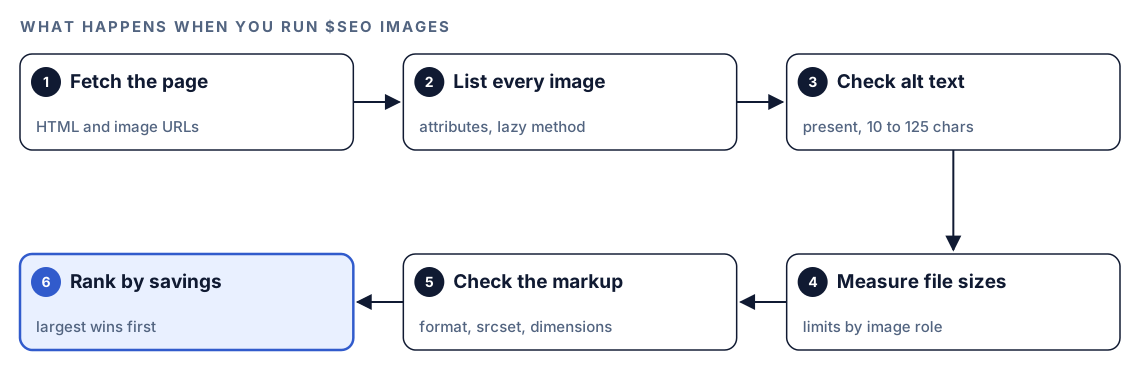
- Fetch the page. Codex downloads the HTML and collects every image reference.
- List every image. It records each image's attributes and its lazy-loading method, if any.
- Check alt text. Each image is tested for a present, descriptive alt attribute of a sensible length.
- Measure file sizes. Each file is compared with the limit for its role.
- Check the markup. Format,
<picture>fallbacks,srcsetandsizes, width and height,loading,fetchpriority,decoding, file names and CDN delivery. - Rank by savings. Findings are sorted so the changes that save the most weight come first.
If it finds no <img> elements, it suggests checking for images loaded by JavaScript or set as CSS backgrounds. Files it can't reach, for example behind a login, are flagged, and it reports what the markup alone reveals. For how the page looks on desktop and mobile, the kit's separate visual agent captures Playwright screenshots during a full SEO audit, including whether the hero loads and the layout stays put.
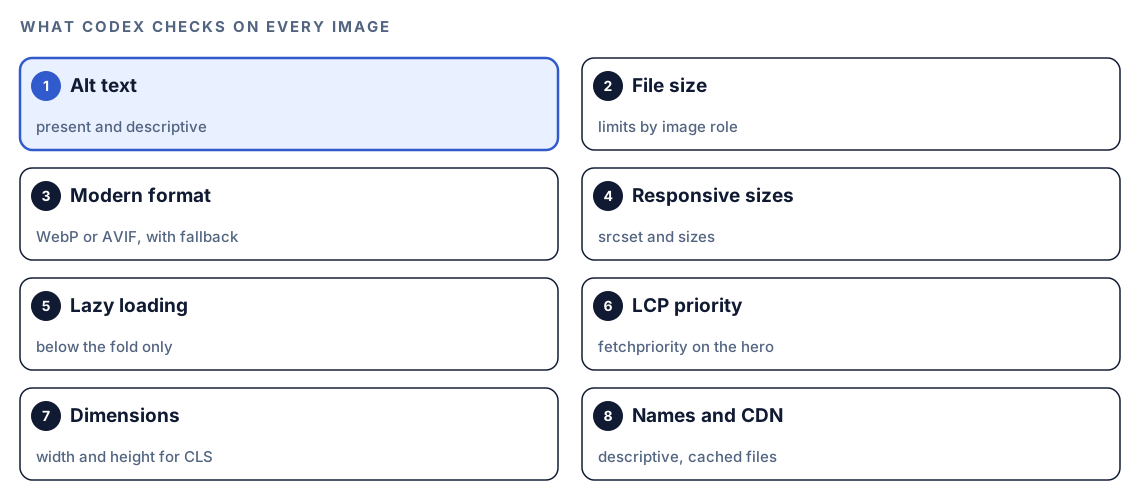
What Codex checks on every image
Alt text
Every meaningful image needs alt text. The skill wants it to exist, to say what the picture shows, to work in a relevant term only where one fits, and to land between 10 and 125 characters. A camera file name, a bare "click here" or a string of repeated keywords all fail. Compare "Hiker crossing a rocky ridge in waterproof trail shoes" with "shoes shoes trail shoes best shoes". The first helps a screen reader user and a search engine; the second helps neither.
File size by image role
One limit can't fit a 1,200-pixel banner and a tiny product thumbnail, so the skill sets three tiers. A hero or banner image should aim for 200 KB; it earns a warning past 300 KB and a critical flag past 700 KB. An image inside the content should aim for 100 KB, with a warning past 200 KB and a critical flag past 500 KB. A thumbnail should stay near 50 KB, with a warning past 100 KB and a critical flag past 200 KB. Where it can, the skill suggests compressing toward the aim without a visible drop in quality.
Formats and the picture element
The skill's first choice is WebP, with AVIF as the smaller but newer option. Older formats keep a role: JPEG as the safety net for photographs, PNG where you need a transparent background, SVG for logos and line art. It looks for a <picture> element that lists the newer formats ahead of a JPEG:
<picture>
  <source srcset="trail-shoe.avif" type="image/avif">
  <source srcset="trail-shoe.webp" type="image/webp">
  <img src="trail-shoe.jpg" alt="Grey trail running shoe with a deep-lug sole, side view" width="800" height="600" loading="lazy" decoding="async">
</picture>
The browser takes the first format it supports, so older browsers still get the JPEG.
Responsive images
A phone shouldn't download the same 1,200-pixel file as a wide monitor. The skill looks for a srcset listing several widths plus a sizes value that mirrors your breakpoints, so each screen fetches a file that fits it.
Lazy loading, fetchpriority and decoding
Below-the-fold images should carry loading="lazy" so they load only when the reader scrolls near them. Above-the-fold images, and the hero above all, should not, because lazy loading the LCP image delays it. The skill recommends fetchpriority="high" on the hero so the browser requests it early, and decoding="async" everywhere else so the browser can unpack those files off the critical path.
For each image it also names the mechanism doing the lazy loading. That can be the browser's own attribute, a WordPress plugin such as Perfmatters or EWWW, some other script, or none. A site that relies on a script won't use the native attribute, and the report shows that as a choice rather than a regression.
Dimensions and layout shift
Give each <img> a width and height, or a CSS aspect-ratio, and the browser can hold the space open before the file arrives. Any image missing both is flagged.
File names and CDN
A file called grey-trail-shoe-side.webp tells a crawler something; IMG_4471.jpg tells it nothing. The skill wants words in lowercase, joined by hyphens, with no odd characters. It also notes whether images come from a CDN and carry edge caching headers, and suggests one when a site leans heavily on images.
Run it in Codex, step by step
- Install the kit using the install section, restart Codex, and open a new task in your site's project. Our guide to installing SEO skills in Codex explains each step.
- Check your permission mode. The audit fetches a live page and its images, so depending on your mode, Codex may ask before it uses the internet. Approve it for the site you're checking.
- Run the audit on a page:
$seo images https://example.com/blog/trail-shoes- Or ask in plain language, and Codex picks the skill:
Audit the images on https://example.com/blog/trail-shoes. Find missing alt text, oversized files, old formats and images without dimensions.- To optimize files in your repository, point the
optimizesubcommand at a file or folder:
$seo images optimize public/images/productsThe skill re-encodes each file as WebP at its quality setting of 82, or as AVIF, produces copies 400, 800 and 1,200 pixels wide, writes creator, copyright and description into the metadata, confirms those fields survived, and hands you the <picture> markup. It looks for exiftool, cwebp, ImageMagick and FFmpeg before it starts and uses whichever are present. Because WebP has no native home for IPTC fields, it stores them as XMP in those files. For AI-generated pictures, it asks you to confirm how each was made and writes the matching digital source type label, which Google Merchant Center expects on AI-generated product imagery.
- To see who wins Google Images for a keyword, use the
serpsubcommand. It needs the DataForSEO extension connected with your own DataForSEO account, and DataForSEO's pricing applies. Our guide to DataForSEO in Codex covers the setup.
$seo images serp "trail running shoes"It reads the first 100 image results and shows who owns the most slots, how the winning images are described, which formats they use, and where your pages rank in web search with no matching image presence.
Reading the report
The page audit produces three parts:
## Image Audit Summary
| Metric | Status | Count |
|--------|--------|-------|
| Total Images | - | XX |
| Missing Alt Text | ❌ | XX |
| Oversized (>200KB) | ⚠️ | XX |
| Wrong Format | ⚠️ | XX |
| No Dimensions | ⚠️ | XX |
| Not Lazy Loaded | ⚠️ | XX |

## Prioritized Optimization List
| Image | Current Size | Format | Issues | Est. Savings |
|-------|--------------|--------|--------|--------------|
| [file name] | XX KB | JPEG | no WebP, no dimensions | XX KB |

## Recommendations
1. Convert X images to WebP (est. XX KB savings)
2. Add alt text to X images
3. Add dimensions to X images
4. Enable lazy loading on X below-fold images
5. Compress X oversized images
The optimization list is already sorted, so its top rows save the most weight. Fix in this order:
- A lazy-loaded hero. A one-attribute change with a direct effect on LCP.
- Missing alt text on meaningful images. An accessibility failure and a lost ranking signal.
- Critical-size files. Anything over the critical limit for its role.
- Missing dimensions. Usually one change in a shared image component.
- Formats and responsive variants. The biggest total savings, but often a build or pipeline change.
Apply the fixes with Codex
Image problems repeat across a site because one component renders every image. Codex can fix it once for every page.
A hero image the audit flags:
<img src="/img/IMG_4471.jpg" loading="lazy">The fixed version, once the files exist in each format and size:
<picture>
  <source type="image/avif" srcset="/img/grey-trail-shoe-400.avif 400w, /img/grey-trail-shoe-800.avif 800w, /img/grey-trail-shoe-1200.avif 1200w" sizes="(max-width: 600px) 400px, 800px">
  <source type="image/webp" srcset="/img/grey-trail-shoe-400.webp 400w, /img/grey-trail-shoe-800.webp 800w, /img/grey-trail-shoe-1200.webp 1200w" sizes="(max-width: 600px) 400px, 800px">
  <img src="/img/grey-trail-shoe-800.jpg" alt="Grey trail running shoe on a rocky path" width="800" height="600" fetchpriority="high">
</picture>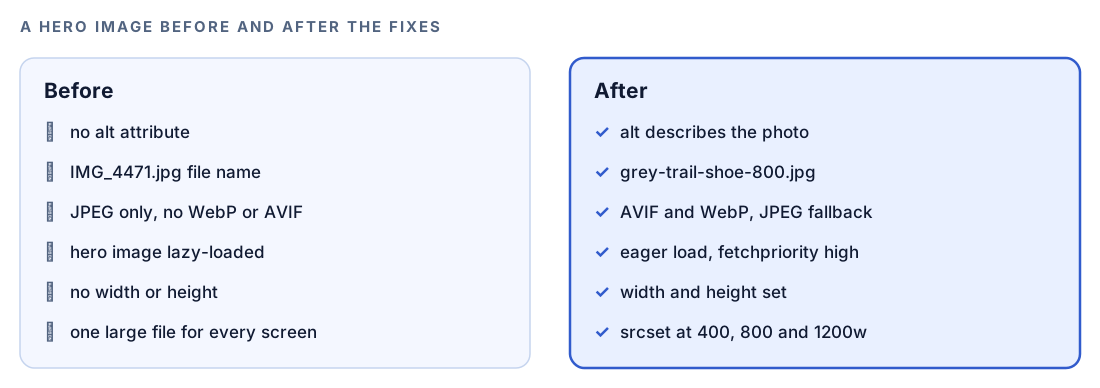
Then ask Codex to make the change across the project:
Use the image audit for /blog/trail-shoes. Find the component that renders images in this project. Make it output a picture element with AVIF and WebP sources, srcset and sizes, and width and height on every img. Above-the-fold images get fetchpriority="high" and no lazy loading; everything else gets loading="lazy" and decoding="async". List any image that has no alt text and suggest one based on the surrounding content, but ask me before writing alt text for product photos. Show me the diff and run the build.Check the alt text suggestions yourself: Codex knows what the page says about an image, but you know what the photo shows. After deploy, run $seo images again and confirm the summary counts dropped.
Make it repeatable
New images arrive faster than anyone audits them. A non-interactive codex exec run can optimize a drop folder before the files reach a page. Run it from your repository:
codex exec --sandbox workspace-write '$seo images optimize public/images/incoming. These are original product photos, not AI-generated.' -o reports/image-optimize.md
git status
--sandbox workspace-write lets Codex write the converted files in your project; the default sandbox is read-only. An unattended run can't stop to ask questions, so state the source type in the prompt. It uses whichever image tools are installed, and -o saves the final summary. Review the changes with git status before you commit. Our guide to automating SEO checks with codex exec shows how to schedule runs like this.
Without the skill: a plain Codex prompt
You can get a useful first pass from Codex with no kit installed:
Fetch https://example.com/blog/trail-shoes and list every img element with its src, alt, width, height, loading and srcset attributes. Download each image and record its file size and format. Flag images over 200 KB, images with missing or file-name alt text, images without dimensions, and any above-the-fold image that is lazy-loaded.For your codebase:
Find every place this project renders an img tag. Tell me which ones lack width and height, which use loading="lazy" on above-the-fold images, and which serve JPEG or PNG without a WebP or AVIF source.What the skill adds is the tiered size limits, the lazy-loader detection, the ranked savings list, the optimization pipeline with metadata handling, and the same report layout every time.
Pitfalls to avoid
- Lazy-loading the hero image. It's the one image that should load first.
- Writing alt text for search engines instead of people. Describe the image; don't list keywords.
- Converting to WebP without a fallback. Use
<picture>so every browser gets a working file. - Leaving out width and height because CSS resizes the image anyway. The browser still needs them to reserve space.
- Serving one large file to every screen size instead of using
srcset. - Spending time on EXIF and IPTC keywords. Google ignores them for ranking.
- Forgetting that an AI-generated product image may need its source labeled for Merchant Center.
Keep going
- Generate OG, hero and blog images with Codex if you need new images, not just lighter ones.
- Run Lighthouse on every page of a site to see how image fixes move LCP and CLS across templates.
- Run a full SEO audit with Codex to check images alongside technical, content and schema issues.
- Every Codex SEO and Codex Blog skill, with the command for each one.
FAQ
How long should alt text be?
The Codex SEO skill checks for alt text between 10 and 125 characters. In practice, write one plain sentence or phrase that describes what the image shows, and stop. Longer descriptions belong in the caption or the body text.
What is the best image format for SEO?
WebP is a safe default for photos and graphics, and AVIF usually compresses further. Serve them in a <picture> element with a JPEG or PNG fallback. Use SVG for logos, icons and simple illustrations.
Should I lazy load all images?
No. Lazy-load images below the fold, but load the hero and anything else visible on first view normally. Lazy-loading the largest visible image delays Largest Contentful Paint.
How big should images be on a website?
That depends on the job the image does. As a rule of thumb from the skill's settings, keep a thumbnail near 50 KB, an in-article picture near 100 KB and a full-width hero near 200 KB.
Can Codex compress and convert my images?
Yes. $seo images optimize <path> converts files in your project to WebP or AVIF, creates responsive sizes and adds metadata, using the image tools installed on your machine. Codex can then update the components that reference them and run your build.
Does image metadata affect SEO?
Not for rankings. Google Images can show creator, credit and copyright details from IPTC metadata, which helps attribution. EXIF camera data and IPTC keywords have no effect on how images rank.