
Content Operations
NotebookLM Codex Workflow: Source-Grounded Blog Research
Query your NotebookLM notebooks from Codex with $blog notebooklm, get answers grounded in your own documents, and turn them into cited blog copy.
A NotebookLM Codex workflow lets you question your own research documents from inside a Codex task and get answers built only from those documents, with the source named. In RankCue's Codex Blog kit the command is $blog notebooklm <question>: Codex uses your saved Google login to open NotebookLM in a headless browser, asks your notebook, checks the reply for gaps, and hands back an answer you can cite in a draft. This guide explains what source-grounded research is, how the command runs, how to manage a notebook library, and how to turn the answers into cited copy in your own project.
Key takeaways
$blog notebooklm ask <question>sends a question to a Google NotebookLM notebook and returns an answer grounded in the documents you uploaded to it.- Codex doesn't pass along the first reply blindly. The skill tells it to compare each answer with your request and ask follow-up questions until the gaps are closed.
- A one-time
$blog notebooklm setuplogin and a library of named notebooks let you query the right sources without pasting URLs every time.- When
$blog writeor the kit's research agent calls NotebookLM and you aren't signed in, the step is skipped quietly and research falls back to web search, so a draft is never blocked.- You need a Google account with NotebookLM access and a local Codex session. No API key is involved.
The NotebookLM command at a glance
| Item | Details |
|---|---|
| Command | $blog notebooklm ask <question>, plus the setup, status, discover, library and cleanup subcommands |
| What you give it | A research question, and optionally which notebook to ask |
| What Codex reads | The answer NotebookLM generates from the sources in your notebook |
| What you get back | One synthesized answer that names the notebook and source, ready to cite |
| Needs | Internet access, a Google account with NotebookLM access, Python 3.11 or newer, and a one-time browser login; no API key |
| Best for | Grounding posts in your own interviews, survey exports, product docs and reports |
What is source-grounded research, and why does it matter for SEO content?
Source-grounded research means every claim in a draft traces back to a document you can point to. AI-assisted writing tends to fail the other way: a model produces a confident statistic or quote that no source supports, and nobody notices until a reader checks.
What NotebookLM does
NotebookLM is Google's research notebook tool. You create a notebook, add sources such as PDFs, Google Docs, web pages or pasted text, and ask questions about them. The answers come from Gemini, but they're built from the sources in that notebook and point back to them, which suits the research step of a blog post.
Why grounded sources help in search
Google's guidance on creating helpful, reliable content asks whether a page offers original information, research or analysis, and whether it avoids factual errors a reader could easily spot. Your own documents are where original information lives: customer interviews, support tickets, survey results, product specs. Grounding a draft in them gives you facts competitors don't have, plus a paper trail for each one.
Specific, attributable statements are also the kind AI answer engines can lift and cite, a theme our generative engine optimization guide covers in depth.
Where NotebookLM fits in the kit's evidence rules
The Codex Blog kit ranks sources by quality. Answers from your own NotebookLM documents count as Tier 1, the top level, because they come from primary material you supplied. The kit's FLOW framework asks for an evidence triple before any statistic goes public, and a NotebookLM answer maps onto it cleanly. The returned source title becomes the inline citation. The notebook URL plus the date you retrieved the answer become the bibliography entry.
Tier 1 doesn't mean infallible. It means the source is yours and you can open it and check. Our guide to the FLOW framework in Codex explains the full evidence model.
How the NotebookLM command runs inside Codex
When you type $blog notebooklm ask followed by a question, the skill works through a fixed loop that you can follow in the task log.
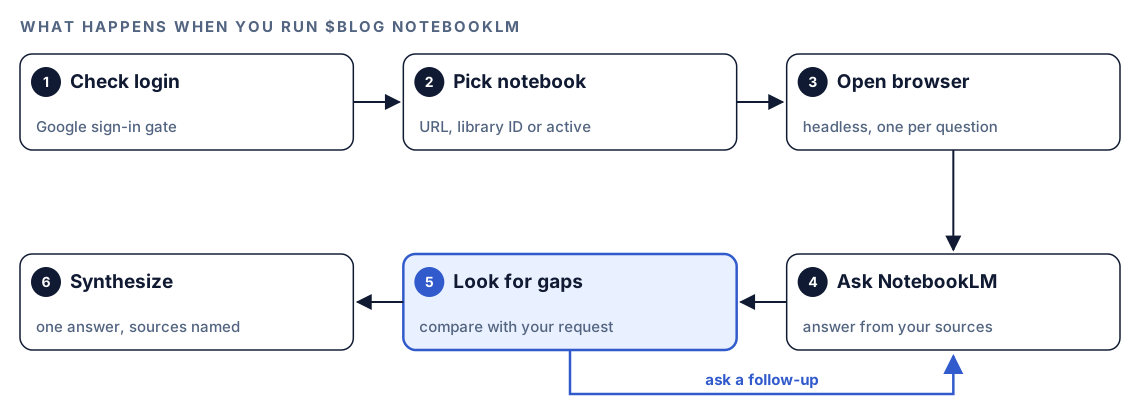
- Check the login. Before any query, the skill confirms your Google session still works. If it doesn't, Codex stops and tells you to run
$blog notebooklm setup. - Pick the notebook. If you named a notebook by its URL, Codex uses that one. If you gave a library ID, it looks the notebook up. Otherwise it uses the active notebook in your library, and when none is active it shows the library and asks you to choose.
- Open a headless browser. A headless browser is a real browser running without a visible window. Each question gets its own session that opens, asks and closes.
- Ask NotebookLM. The question goes to the notebook, and the reply comes back built from your uploaded sources.
- Look for gaps. This step makes the skill more than a relay. The instructions tell Codex not to answer you straight away. It compares the reply with what you originally asked, decides whether anything is missing, and if so sends NotebookLM a follow-up question. It repeats until the information is complete.
- Synthesize. Codex combines all the answers into one response and names the notebook the facts came from.
Because each question runs in a fresh session, NotebookLM never remembers the previous one. The follow-up loop works because Codex carries the context between rounds, at the cost of a few seconds of browser launch per question.
The skill gives each query 120 seconds. If a question times out, ask a simpler version, or have Codex rerun it with the browser visible so you can watch where it stalls.
What the NotebookLM skill can do
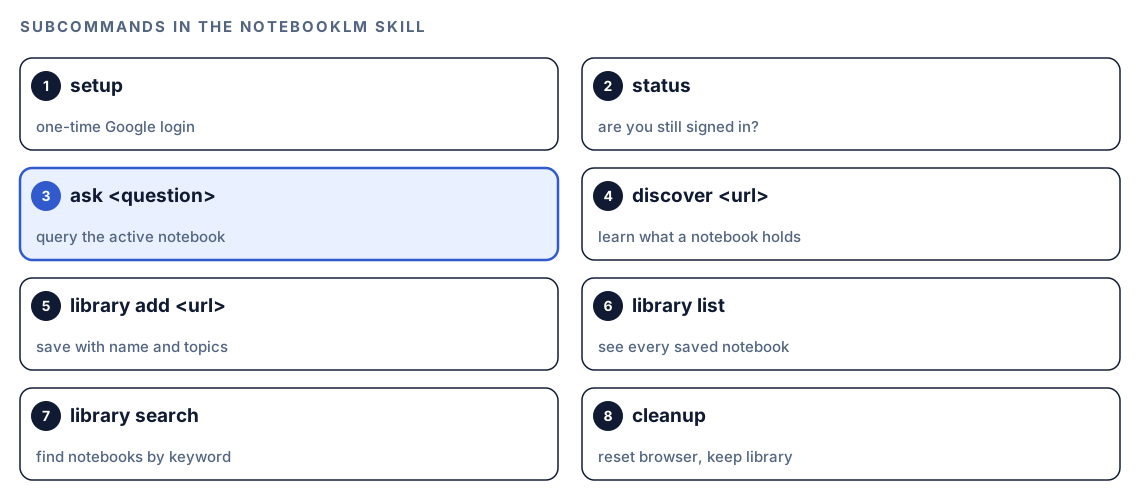
Asking questions is one part of the skill. The rest keeps your login healthy and your notebooks organized.
Setup and status
$blog notebooklm setup opens a visible browser window so you can log in to Google yourself. You do this once. The skill keeps the session through a saved browser profile and cookies. $blog notebooklm status reports whether that login still works.
The library, login status and browser profile live inside the skill's own folder, which is excluded from version control. Keep it that way, because the browser state holds your Google session cookies.
Discover a notebook before you add it
When you have a notebook URL but don't remember what's in it, $blog notebooklm discover <url> asks the notebook for an overview of its content and topics. Codex then saves it to the library with a name, description and topic list based on that overview. The skill forbids guessing: a description must come from discovery or from you, never from a generic placeholder.
Manage the library
The library is your catalog of notebooks. library add <url> saves one, and a name, description and topics are all required. library list shows everything you've saved, library search <query> finds notebooks by keyword, and library remove <id> drops one. One notebook is marked active, and that's the one ask uses when you don't name another.
Clean up without losing the catalog
If the browser crashes or starts misbehaving, $blog notebooklm cleanup clears the browser state but keeps your library. Run setup again afterward to log back in.
Run it in Codex, step by step
- Install the Codex Blog kit with the steps in the install section, restart Codex, and open a new task in your blog's project folder. Our guide to installing skills in Codex covers this in detail.
- Add your documents in NotebookLM itself. The skill can't upload files for you, so sources go in through the NotebookLM web interface first.
- Use a local Codex session: the app, the CLI or an IDE extension on your own computer. The skill drives a real browser on your machine and isn't available from a web interface.
- Run the one-time login. A browser window opens, and you sign in with the Google account that can see the notebook.
$blog notebooklm setup- Check your permission mode. The skill reaches NotebookLM over the internet, so depending on your mode, Codex may ask before it uses the internet. Approve it for NotebookLM.
- Add a notebook and let Codex work out what it holds:
$blog notebooklm discover https://notebooklm.google.com/notebook/your-notebook-id- Ask your question:
$blog notebooklm ask Which onboarding problems do customers mention most in the interview transcripts?- Or describe what you want in plain language. Codex picks the skill when your request matches its description:
Ask my customer research notebook in NotebookLM why teams switched to us, and name the source document behind each reason.Reading the answer
When the kit's writing workflow calls the skill, the result comes back as a fixed block:
### NotebookLM Research
- **Source:** [Notebook name]
- **Question:** [What was asked]
- **Answer:** [Answer grounded in your uploaded documents]
- **Source Quality:** Tier 1 (user-uploaded primary documents)
When you call it yourself, Codex replies with one synthesized answer drawn from every round. Either way, review it in this order:
- Is the claim really in the source? Open the notebook and find the passage, especially for numbers and quotes.
- Is the source current? A document can be accurate and still out of date. Note its date next to the claim.
- What's missing? If the answer feels thin, ask a narrower follow-up instead of accepting a vague summary.
- How will you cite it? Use the evidence triple: the source title inline, then the notebook URL and retrieval date in your sources list.
How the blog writing workflow uses your notebooks
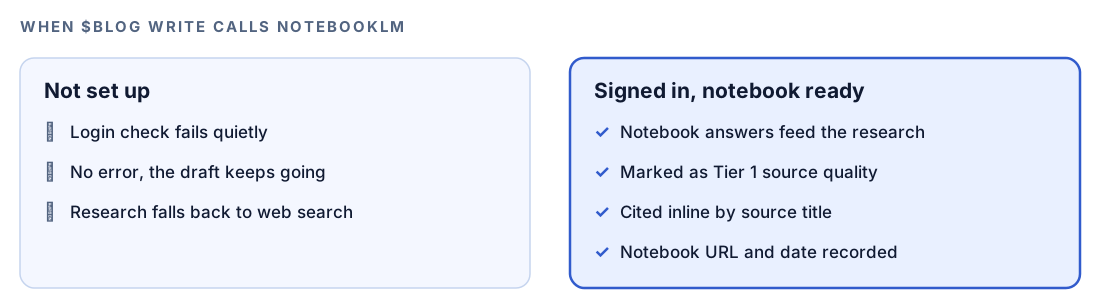
$blog write and the kit's research agent can call NotebookLM for Tier 1 research data. In that mode the skill stays quiet. If you aren't signed in, or the query fails, it returns nothing and raises no error. The writing workflow carries on with web search instead. The skill states the rule plainly: NotebookLM must never block $blog write or $blog rewrite.
That default suits teams where only some writers have NotebookLM set up, but it means a missing login is silent. If you expected notebook facts in a post and they aren't there, run $blog notebooklm status before anything else. Our guide to writing a blog post with Codex shows where this research step sits in the full drafting process.
Apply the research with Codex
Because Codex works inside your repository, it can take the notebook answers and edit the draft itself, instead of you copying quotes between windows.
A typical change starts with an unsupported line:
Most customers switch because onboarding takes too long.After the edit, the claim names its source and the post lists it:
In our [interview set], the most common reason for switching was [reason from the source document] ([Source document title]).

## Sources
- [Source document title]. NotebookLM notebook: https://notebooklm.google.com/notebook/your-notebook-id, retrieved [YYYY-MM-DD].
Then ask Codex to make the change across the draft:
Use the NotebookLM answers from this task to update content/blog/why-teams-switch.md. Replace each unsupported claim with the matching fact from the notebook and cite the source document title inline. Add a Sources section with the notebook URL and today's date for each source. Don't add anything the notebook didn't support; mark those sentences [NEEDS SOURCE] instead. Show me the diff, then run the site build.Read the diff and spot-check two or three citations against the notebook before you accept it. For statistics that came from elsewhere, run $blog factcheck on the file as a second pass; our guide to fact-checking blog posts with Codex explains how that command works.
Make it repeatable
The quiet fallback is right for drafts, but on a team you want every writer, and every Codex task, to reach for the same notebook first. A short block in your project's AGENTS.md file sets that standard:
## Research sources
- For posts about our product, customers or pricing, query the "Customer research" notebook with $blog notebooklm before using web search.
- Cite notebook facts inline by source document title. In the Sources section, list the notebook URL and the retrieval date.
- Never publish a statistic or quote that isn't traced to a notebook source or a linked public source. Mark gaps as [NEEDS SOURCE].
- If $blog notebooklm status shows no login, say so in your task summary instead of skipping the step silently.
Codex reads AGENTS.md before it starts work, so every future writing task in the project follows these rules. The last line turns a silent fallback into a visible note. Keep the file short, because the combined instructions have a size cap. Our guide to AGENTS.md rules for SEO has a fuller example.
Without the skill: a plain Codex prompt
Plain Codex can't reach a NotebookLM notebook, but you can get much of the grounding benefit by putting your sources in the repository:
Read every file in research/interviews/. Using only those files, answer this question: which onboarding problems do customers mention most? For each point, name the file and quote the sentence it comes from. If the files don't answer part of the question, say so instead of guessing.A second prompt checks a draft against the same folder:
Compare content/blog/why-teams-switch.md with the files in research/interviews/. List every claim the files don't support, and suggest a sourced rewrite for each one.What the skill adds is a direct line to the notebooks you already keep in NotebookLM, a searchable library, the gap-checking follow-up loop, Tier 1 tagging for the writing workflow, and a fallback that keeps $blog write running when the notebook isn't available.
Pitfalls to avoid
- Treating grounded as verified. NotebookLM answers from your sources, but it can still misread or blend them, so check numbers and quotes.
- Filling a notebook with weak material. Tier 1 reflects who supplied a document, not how good it is.
- Committing the skill's browser state. It holds your Google session cookies.
- Asking sprawling questions. Long, multi-part questions are more likely to time out; split them into focused ones.
- Ignoring the daily limit. Google caps how many NotebookLM queries an account can run per day, so ask the important questions first.
- Assuming notebook facts made it into a draft. Without a login,
$blog writefalls back to web search and says nothing.
Keep going
- Fact-check blog posts with Codex to verify the statistics that didn't come from your notebook.
- Write a blog post with Codex to see where NotebookLM research fits in the full drafting workflow.
- The FLOW framework in Codex explains the evidence rules behind Tier 1 sources.
- Every Codex Blog and Codex SEO command, listed in one place.
FAQ
Can Codex connect to NotebookLM?
Yes, through the NotebookLM skill in the Codex Blog kit. After a one-time Google login, $blog notebooklm ask <question> queries your notebook in a headless browser and returns the answer inside your Codex task. It needs a local Codex session because it drives a browser on your computer.
Do I need an API key to use NotebookLM with Codex?
No. The skill uses your Google account, not an API key. You need NotebookLM access on that account, Python 3.11 or newer, and the one-time $blog notebooklm setup login. The skill sets up its own environment and installs the browser it needs on first run.
Are NotebookLM answers accurate?
They're grounded in the sources you uploaded, which removes the biggest risk: claims that come from nowhere. They can still misread a document or merge two sources, so check numbers and quotes against the original before you publish.
How many questions can I ask NotebookLM from Codex?
Google limits how many NotebookLM queries an account can make per day. When you reach the limit, the skill tells you to wait for the reset or switch to another Google account.
Does the NotebookLM skill remember earlier questions?
No. Each question runs in a fresh browser session with no memory of the one before. Codex holds the context instead, writing follow-up questions until the gaps close and then combining everything into one reply.
What happens if NotebookLM isn't set up when Codex writes a post?
Nothing breaks. When $blog write calls the skill and finds no login, the skill returns quietly and research continues with web search. If you expected notebook facts in the draft, run $blog notebooklm status and log in again with setup.